Report Editor
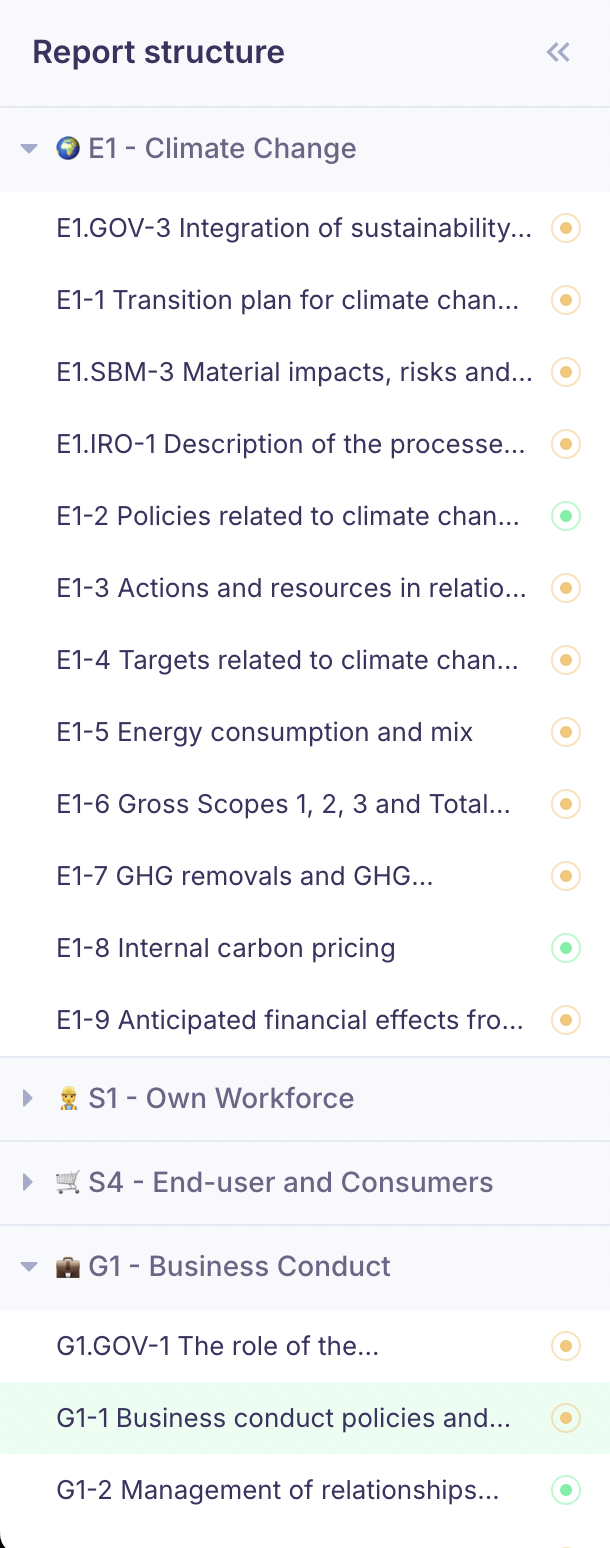
The report editor is where you review AI-generated answers, complete data points, and finalize your sustainability disclosures. It provides a structured view of your report organized by ESRS topics and disclosure requirements.
Data point types
Each data point in your report uses one of the following input types:
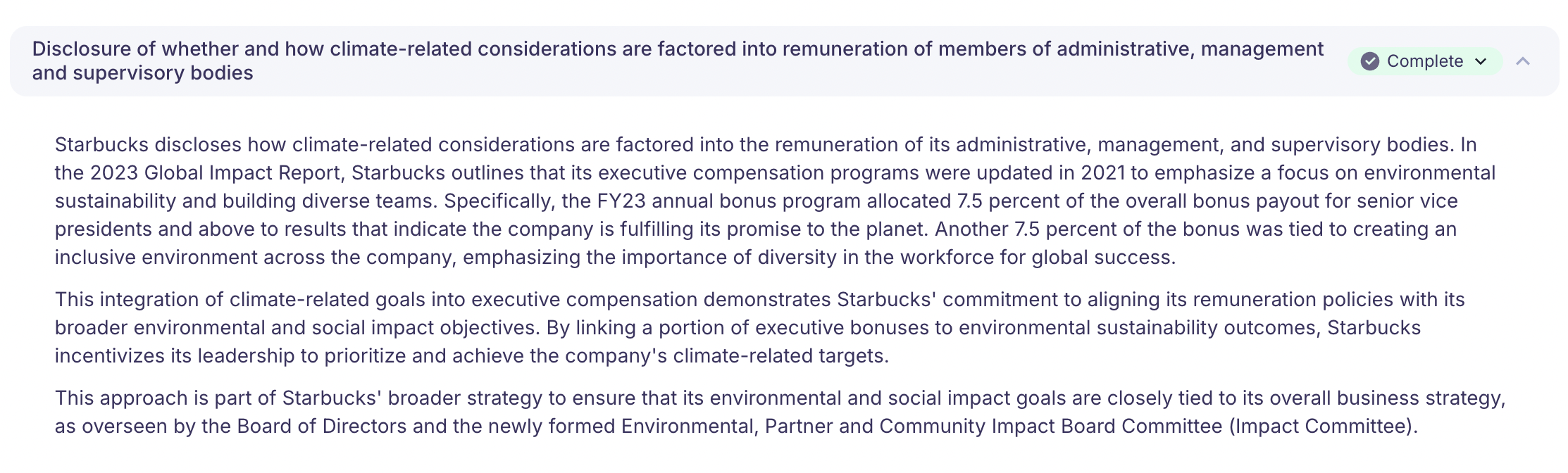
Narrative
Free-text fields for qualitative disclosures. Use the rich text editor to write descriptions, explain policies, or provide context. The editor supports formatting, headings, lists, and links.
Semi-narrative
Structured inputs that combine predefined options with optional text:
- Boolean — Yes/no questions (e.g., "Does the undertaking have a transition plan for climate change mitigation?").
- Single-select — Choose one option from a dropdown list.
- Multi-select — Select multiple applicable options from a list.
Numerical
Quantitative data points that require a number and a unit of measurement. Values can be integers or decimals. The unit is predefined based on the ESRS requirement (e.g., tonnes CO2e, MWh, EUR, percentage).

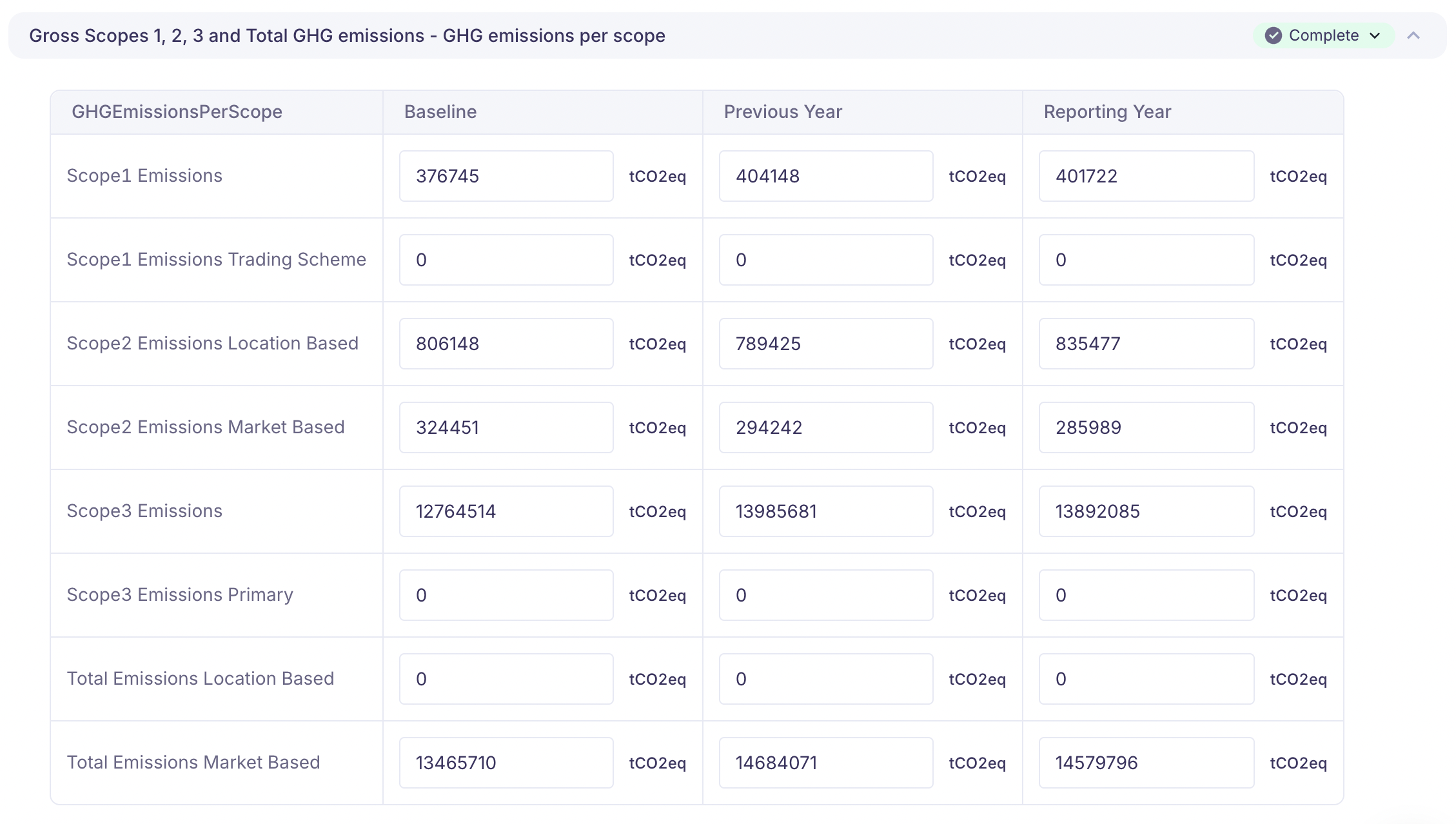
Table
Predefined table structures for disclosures that require tabular data. The columns and their data types are defined by the ESRS standard. You fill in the rows with your organization's data.
Input group
A list of items, each with its own set of associated questions. For example, a list of material impacts where each impact has fields for description, severity, and remediation actions.
AI assistant
Karomia's built-in AI assistant helps you draft, refine, and complete your report. There are three ways to use it:
Regenerate answer
If an AI-generated answer needs improvement, you can regenerate it with additional guidance:
- Review the linked documents that informed the current answer.
- Add specific instructions or notes to guide the AI (e.g., "Focus on Scope 1 and 2 emissions from the 2024 environmental report").
- Assign additional documents that contain relevant information.
- Click Regenerate. The data point status changes to "Processing" while the AI produces an updated answer.
Query documents and standards
Use the AI to search through your uploaded documents and the ESRS standards:
- Ask questions to find specific information within your uploads (e.g., "What is our total energy consumption from renewable sources?").
- Request explanations of ESRS standards or EFRAG implementation guidelines to understand what a data point requires.
This is especially useful when you need to locate data across multiple documents or when the regulatory text is unclear.
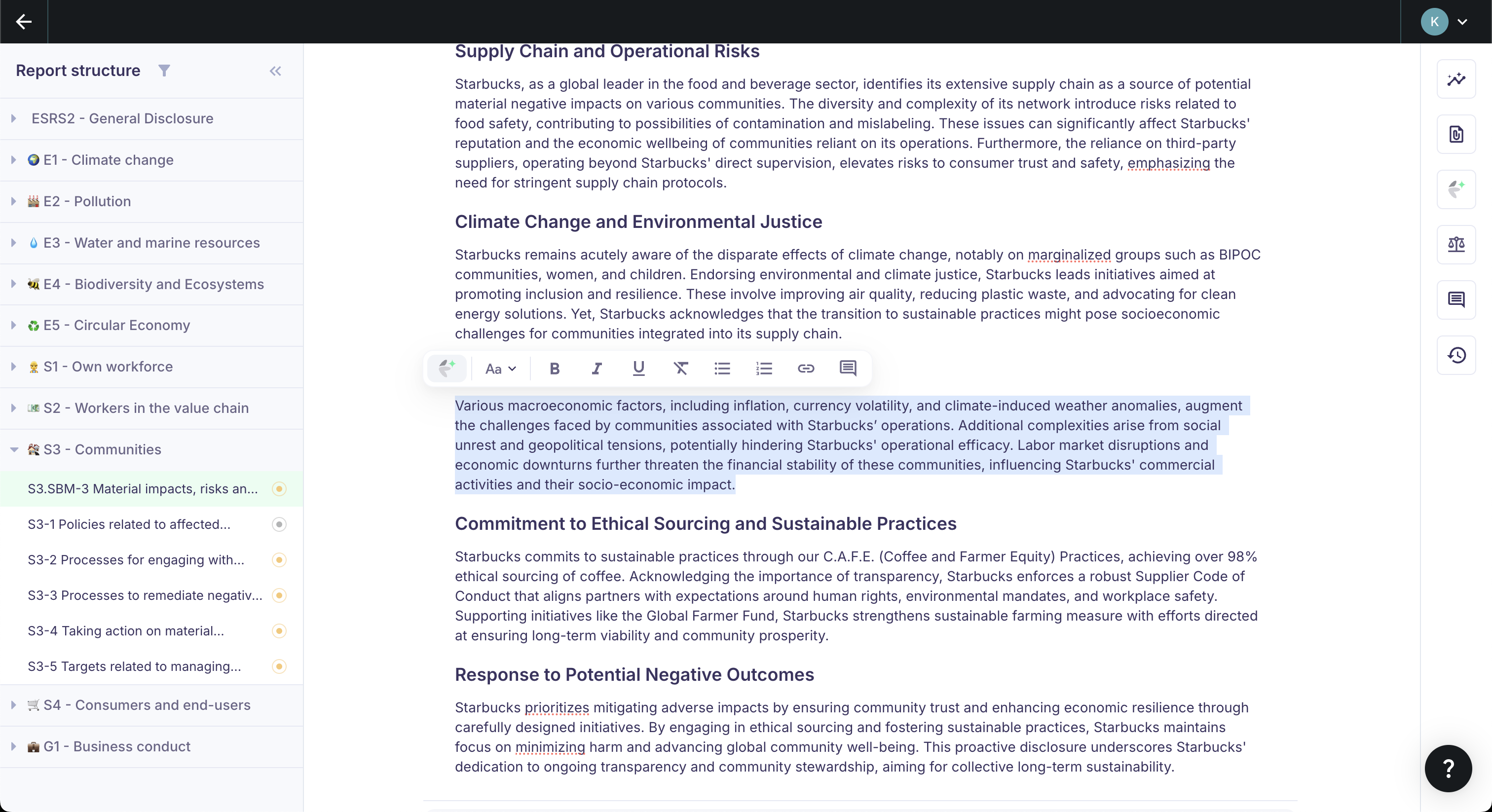
Edit text
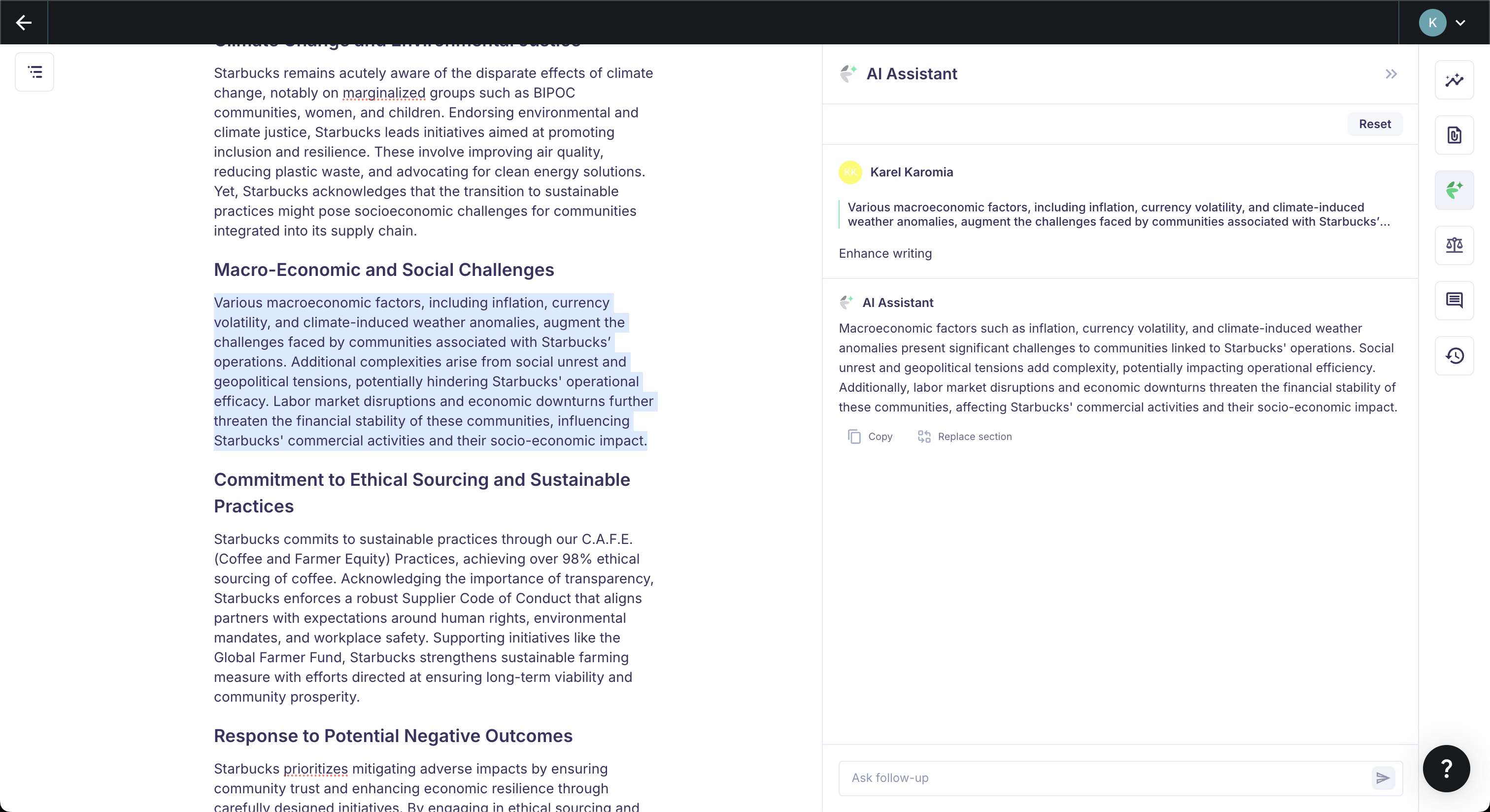
For narrative data points, you can use the AI to refine your writing:
- Select the text you want to edit.
- Click the Karomia logo that appears.
- Choose a predefined prompt or write a custom instruction:
- Enhance writing — Improve clarity, grammar, and professional tone.
- Summarize — Condense lengthy text into a shorter version.
- Turn into full sentences — Convert bullet points or notes into flowing prose.
- Custom — Provide your own instruction (e.g., "Make this more concise" or "Add more detail about our governance structure").
Excluding data points
If a data point does not apply to your organization, you can change its status to Excluded. When excluding a data point, you must select a reason:
- Not material — The topic is not material to your organization.
- "May" disclosure — The data point is optional.
- Phase-in — The data point is subject to a phase-in exemption.
- Phase-in (fewer than 750 FTE) — The phase-in exemption applies to your company size.
- PAT not in place — Your organization does not yet have the relevant policy, action, or target.
- Conditional — The data point's condition does not apply to your situation.
- Alternative — An alternative data point has been answered instead.
The exclusion reason is recorded and included in your report export for audit transparency.
Completing data points
To finalize a data point, follow this two-step process:
Step 1: Check missing elements
Before completing a data point, review whether all required elements have been addressed. Karomia displays the regulatory text alongside any missing elements, so you can see exactly what information is still needed.
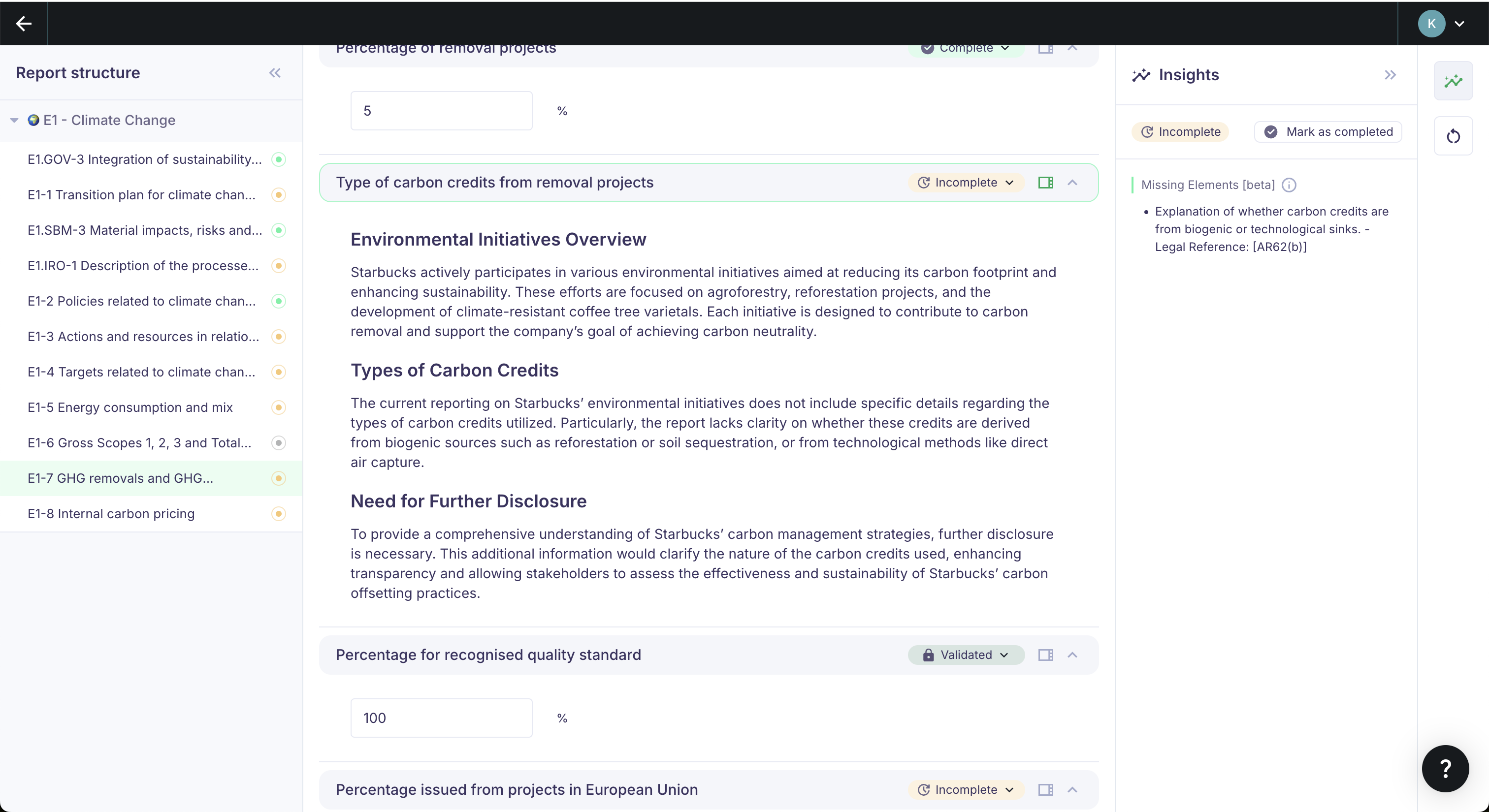
Edit the answer to address any gaps, using the AI assistant or your own knowledge.
Step 2: Mark complete and validate
Completing an answer uses a deliberate two-step confirmation:
- Mark as complete — Indicates that you believe the answer is finished.
- Validate — A second confirmation step that locks the data point, providing a safety check before finalization.
This two-step approach prevents accidental completion and ensures that each answer has been consciously reviewed.
Next steps
- Managing documents — Attach supporting documents to your report.
- Exporting reports — Generate your final report output.