Request ESG Assessment
What you'll do
You'll add one or more portfolio companies to your workspace and send them an ESG assessment request. In the process you will:
- identify the company (via VAT number),
- invite one or more persons who will administer the company account, and
- choose the reporting framework and due date for your request.
You can add more requests later (for example, for a new year or a different framework). Each request is always linked to a specific company.
Step 1: Add companies
Navigate to the 'Network' page in the 'Partner' menu and click on '+ Invite entity' to add the portfolio company you want to request data from.
Identify the company (VAT number)
Enter the VAT number. Karomia checks whether the company already exists on Karomia or Kube ESG.
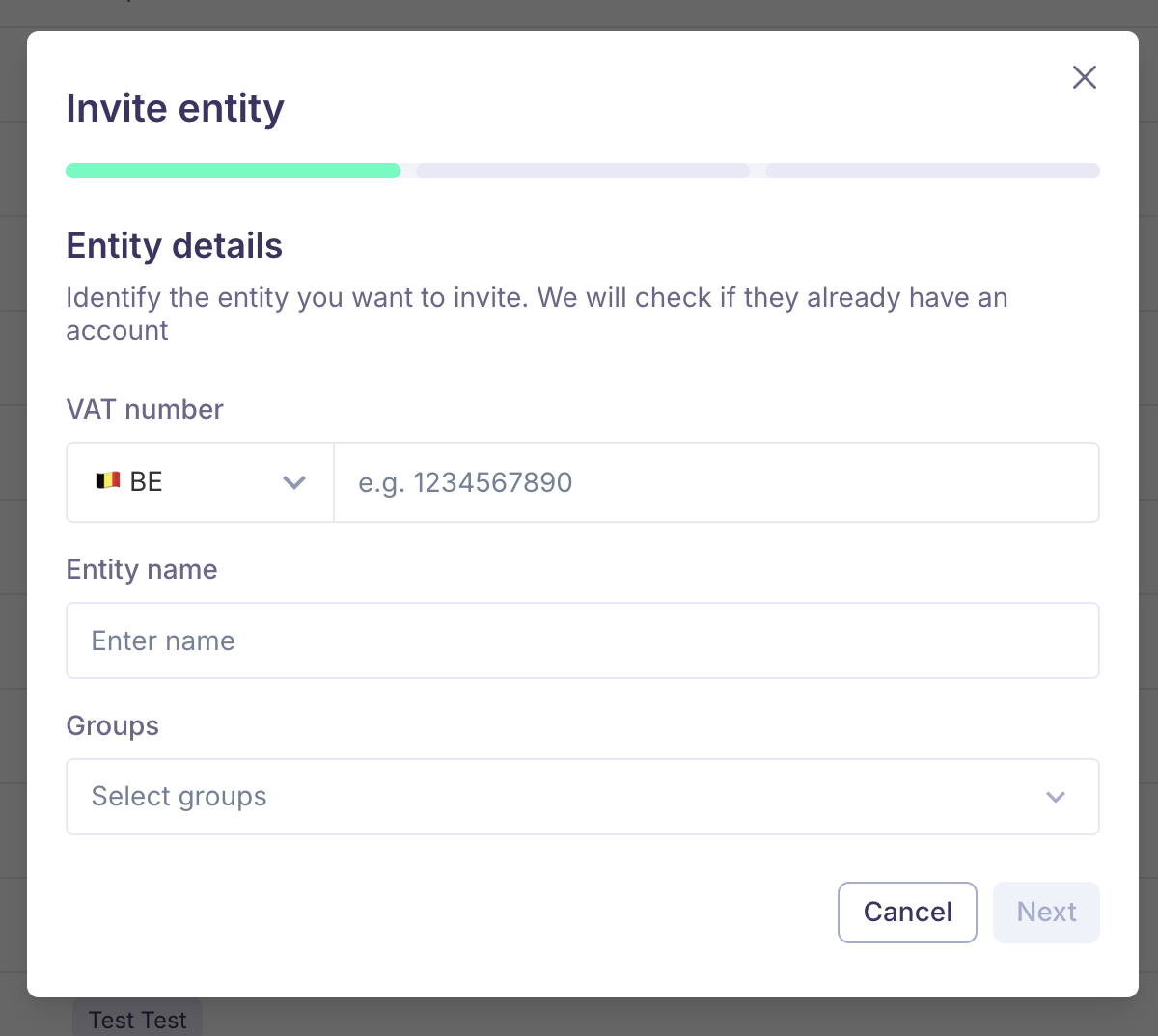
Option 1: The company doesn't exist yet
If no company with the same VAT number has been found, you'll be asked to enter the company name and one or more people to invite (full name + email).
These invitees — together with the company's legal representatives — will be able to:
- set up the Kube ESG account, and
- start the ESG assessment.
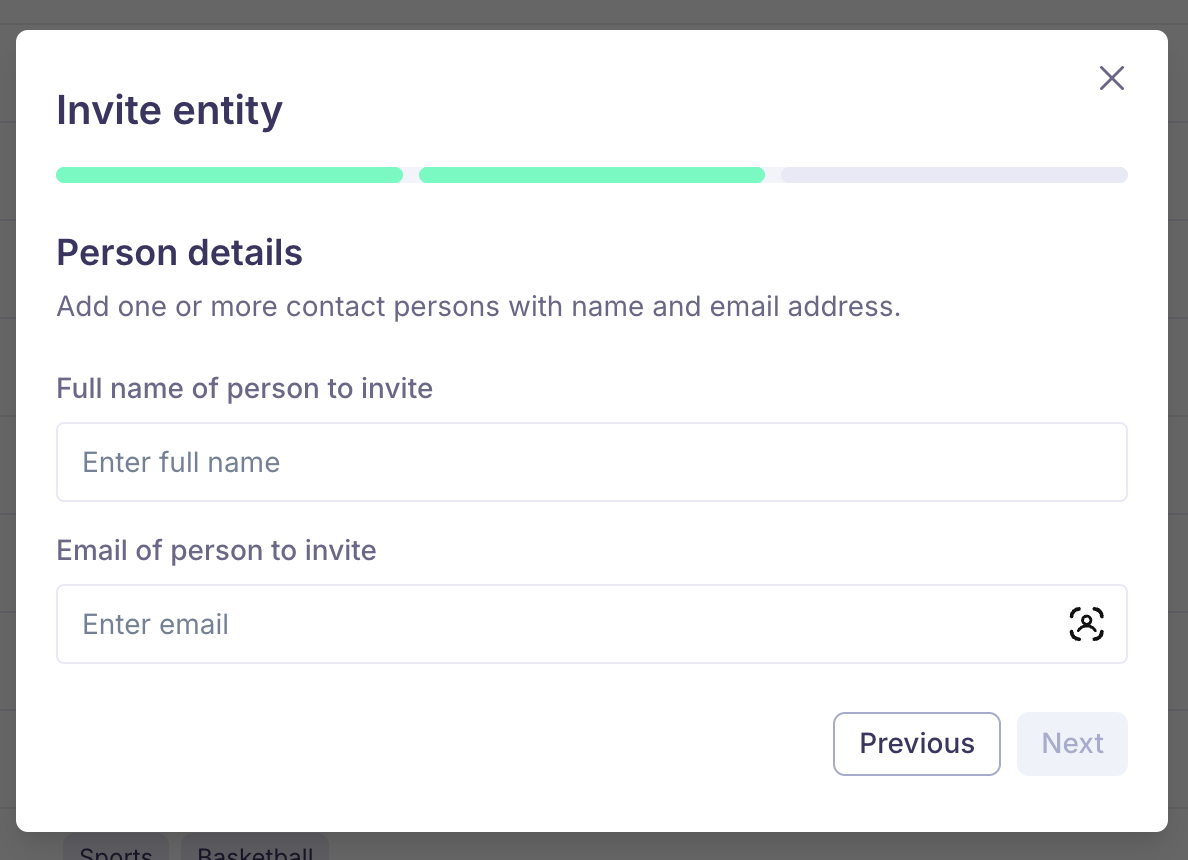
Option 2: The company already exists
If a company with the same VAT already exists, the name of the company will get prefilled and locked. There is no longer a need to invite someone — the existing admins of that portfolio company will be informed about your request for an ESG assessment.
Link the company to one or more groups
Link the company to at least one group (e.g., fund, team, region). This ensures the right people in your organisation can access the company and the requested data. See Define your organisation.
Step 2: Choose ESG framework
Requests are created as part of the invite flow. You can always create additional requests later for companies that are already in your list.
This step is the same for both portfolio companies who already have a Kube account and those who don't.
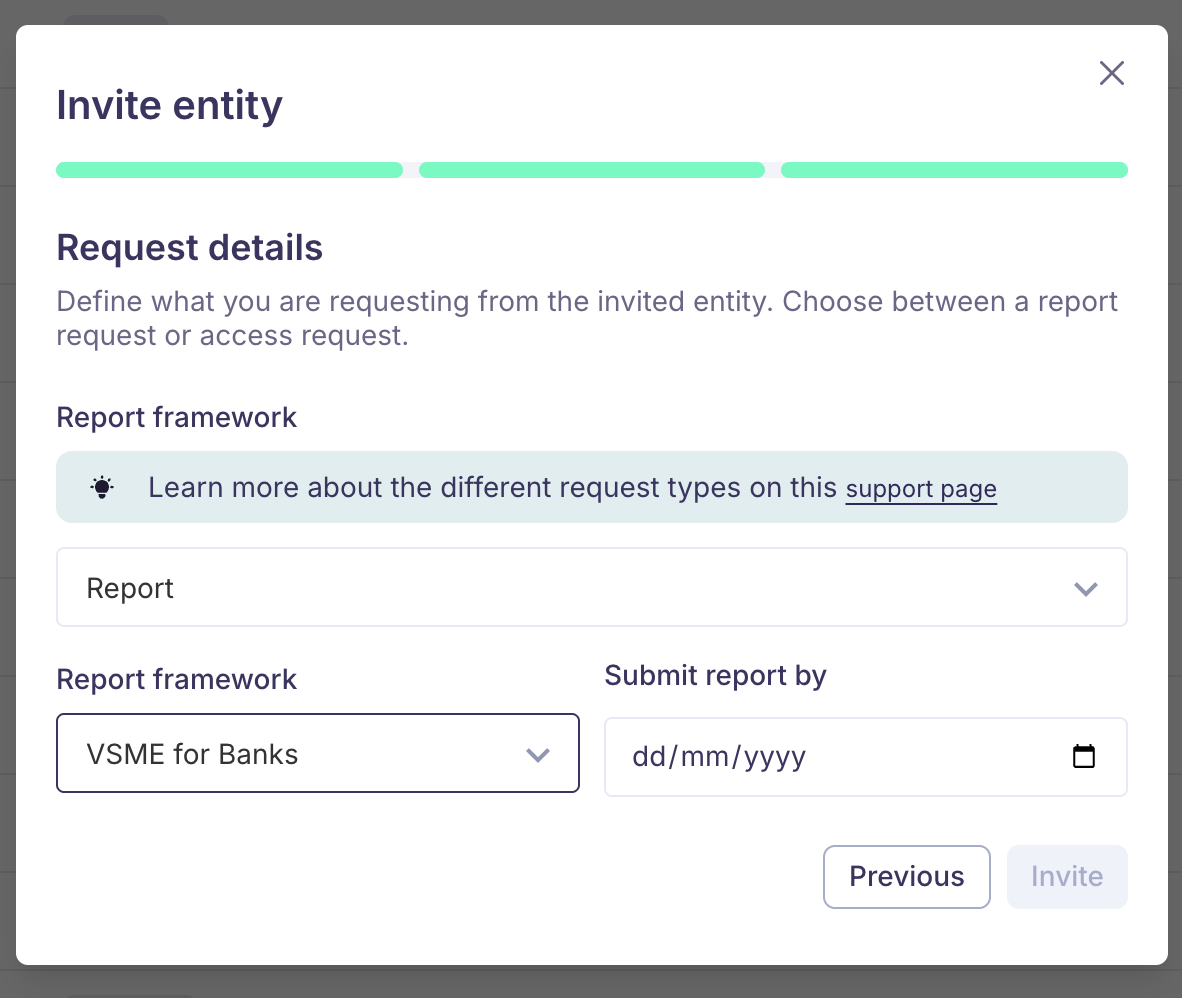
Choose the ESG framework
Depending on your setup, you can choose one of the available frameworks:
| ESG framework | Description |
|---|---|
| VSME for Banks | Full VSME (basic + comprehensive module). Also the template banks use to request an ESG assessment from customers. |
| VSME for Banks & Invest Europe | Full VSME plus additional data points aligned with Invest Europe reporting needs. |
| Fund of Funds | Questionnaire for funds, based on Invest Europe. |
Add a due date
Set a report due date to communicate expectations to the company.
This is informational (it does not block submissions after that date), but it helps companies prioritise and plan.
Step 3: Invite email
There are two possible routes:
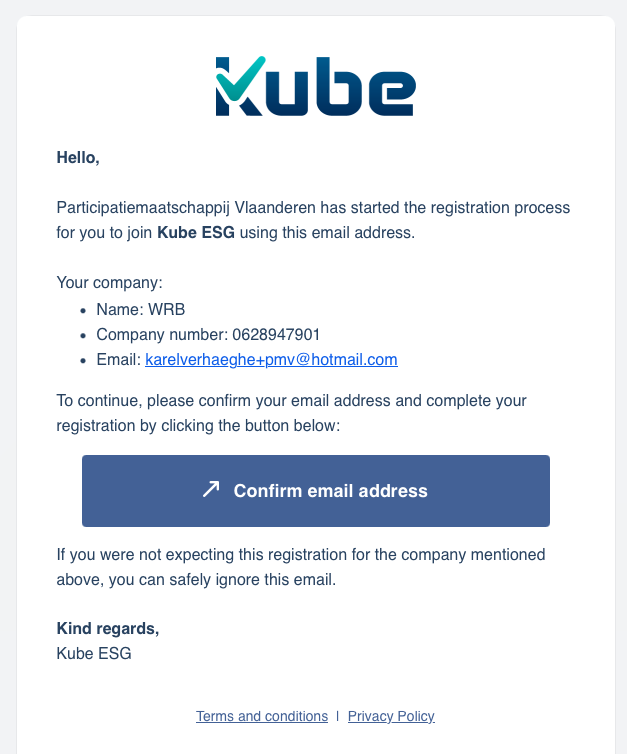
Kube Route: Belgian company with VSME or VSME+Invest Europe framework
An automated email is sent from Kube to the person whose email you've indicated. This email contains a personalised link to create a Kube account and start a report.
Karomia Route: All other cases
For example: non-Belgian companies or when the Fund of Funds reporting template is requested.
An automated email is sent from Karomia to the person whose email you've indicated. This email contains a personalised link to create a Karomia account and start a report.
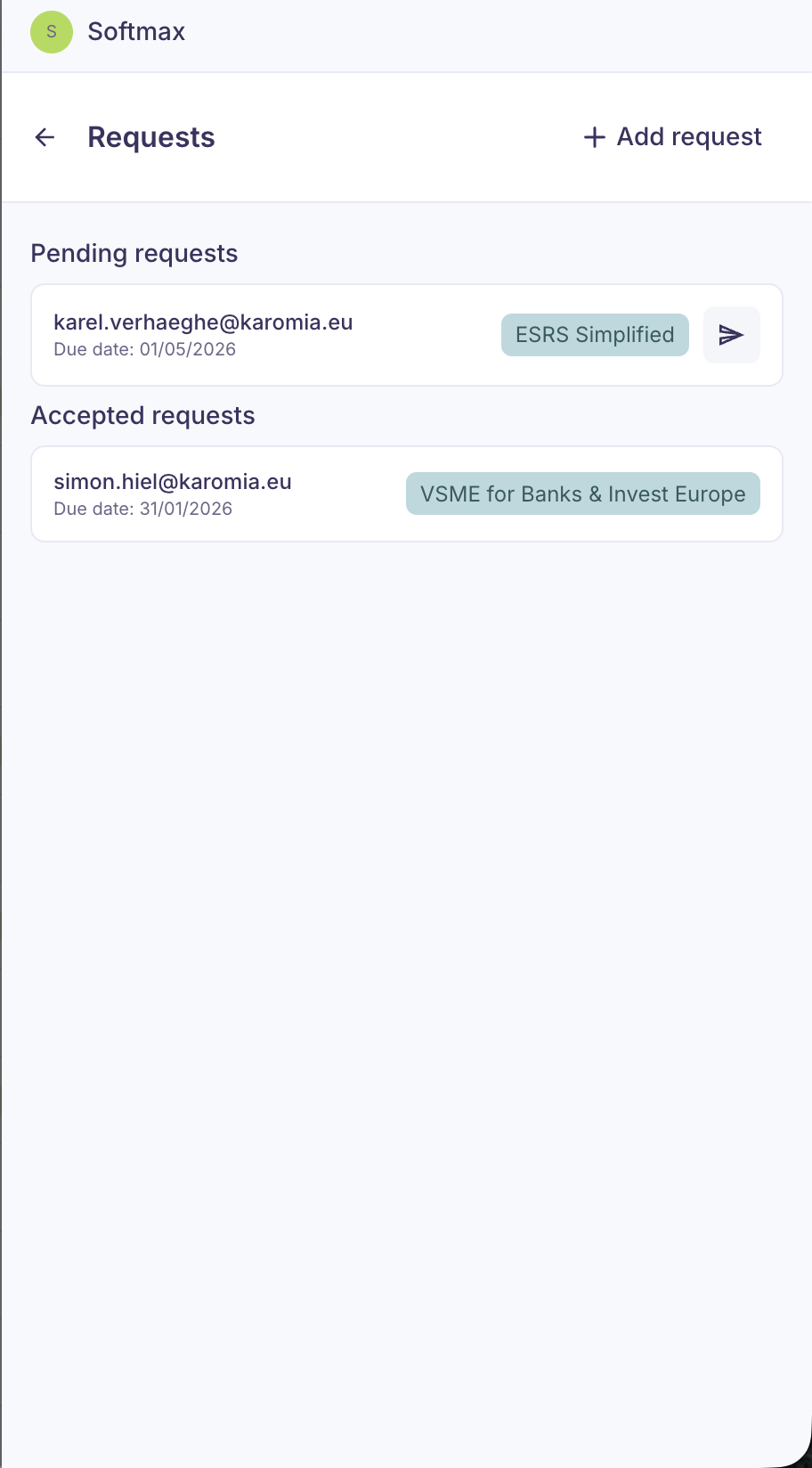
Resending the invite email
Through the interface, you can always resend the invite email for pending requests to your invitees.
Additional, personalised email
It is recommended to also send a personalised email yourself using the communication channels you already use with the company.
This is recommended because:
- the company already knows and trusts you but might not trust an invite email from 'Kube' or 'Karomia',
- you can choose the best language and tone,
- they can reply directly with questions.
What to include in your email:
- Why you're inviting them (and why you're requesting this information)
- That they are offered a free tool (Kube or Karomia) and that effort is minimal thanks to embedded AI
- Which framework, which reporting year, and by what due date
- The fact that they will receive an invite link from Kube or Karomia (which might land in spam)
Step 4: Company passport
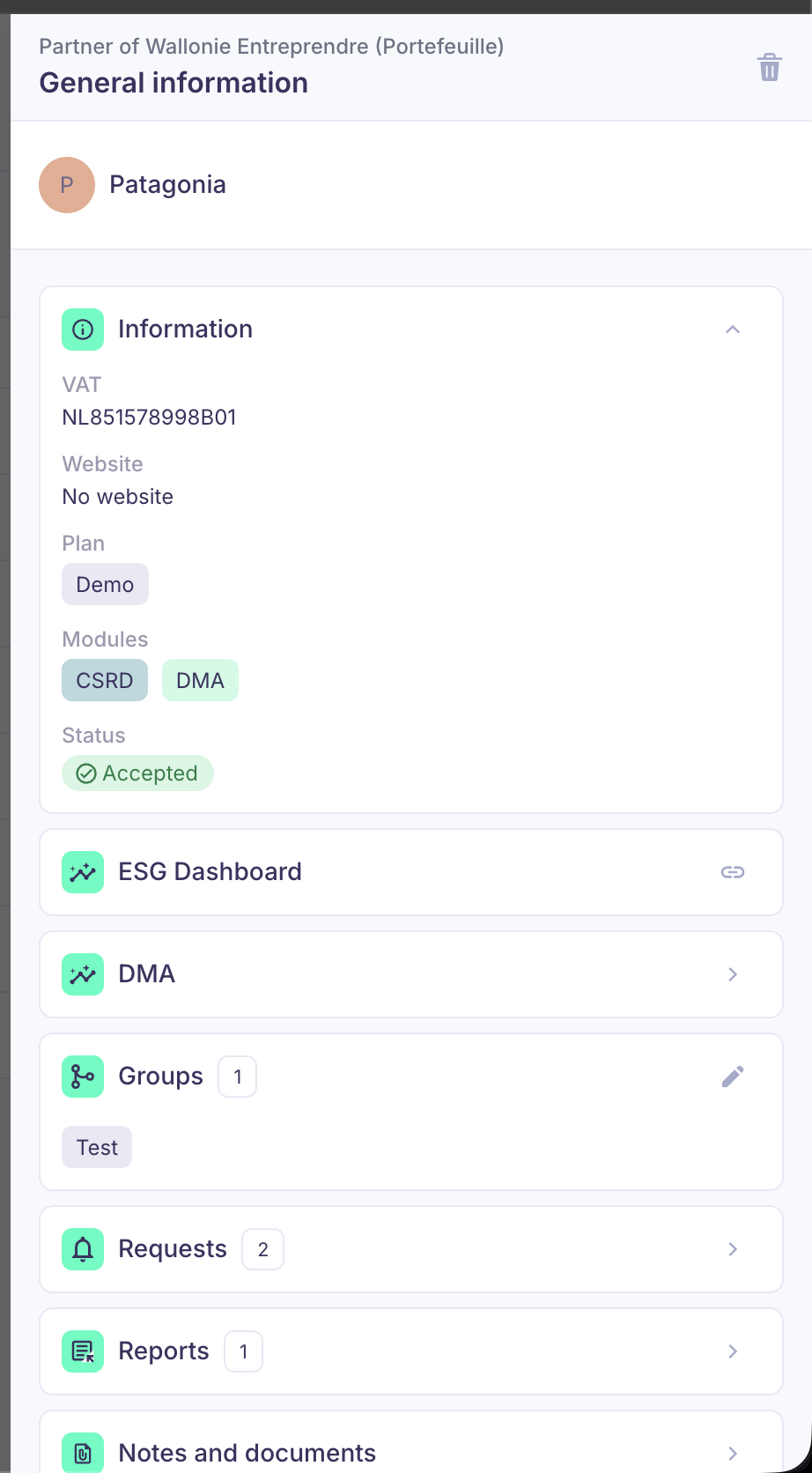
Clicking on any company you've invited slides open a company passport.
In it, you'll find the company details and the pending and accepted requests you sent their way, as well as:
- A link to their ESG dashboard, once the data is available (see Sustainability dashboard)
- A list of completed reports, ready to be downloaded in the format of your choosing (PDF, CSV, Excel, Word)
- Notes and documents: a place where you can log any important contextual information, either as written notes or as attached documents.