Define Your Organisation (Admin Only)
What you'll do
Set up your organisation structure in Karomia by:
- inviting team members, and
- organising both members and portfolio companies into groups.
Admin permissions required: Only Admins can complete the steps below.
Step 1: Invite members
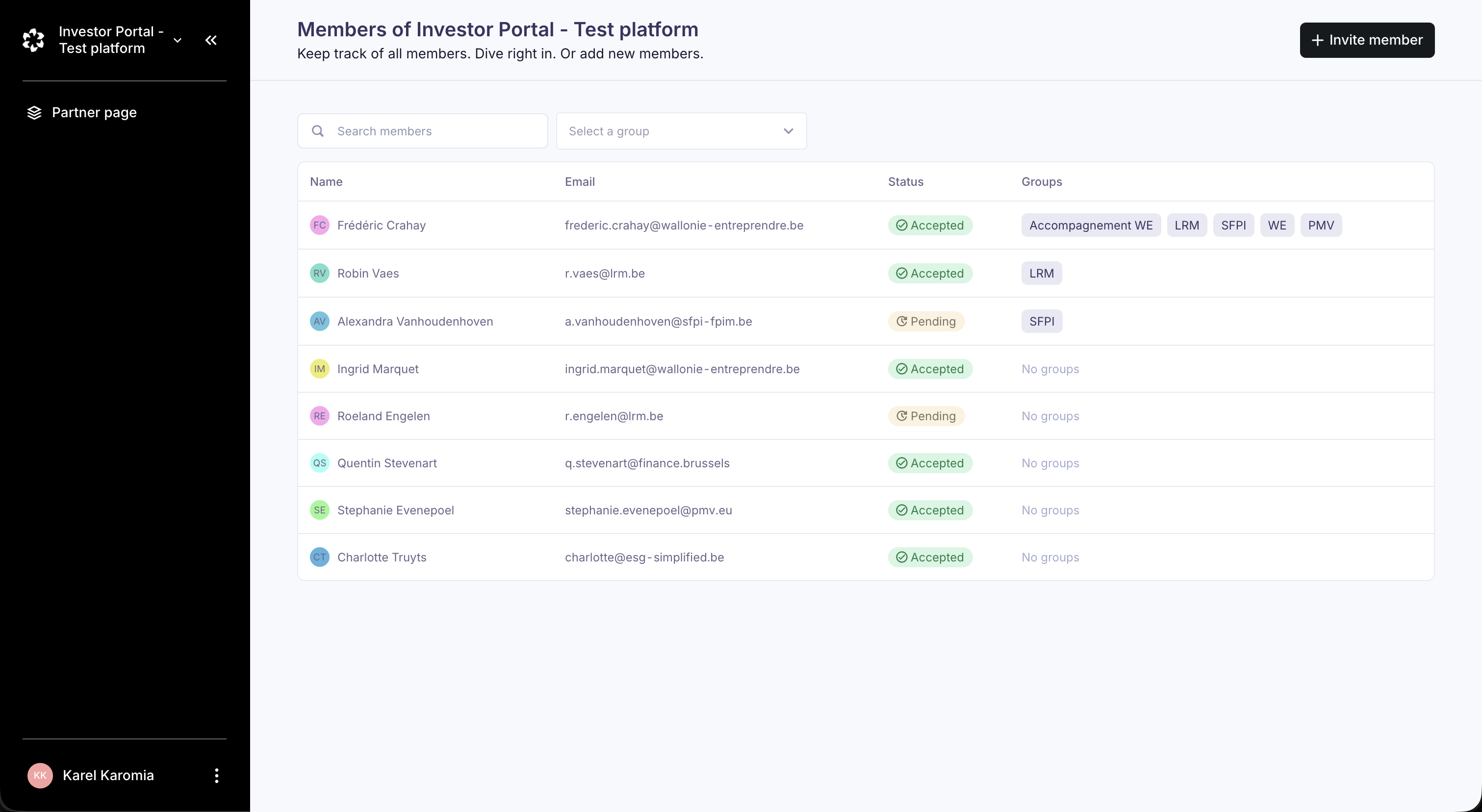
The Members page shows everyone who currently has access to your Karomia workspace (including their role and access level).
Invite a new member
- Go to Members
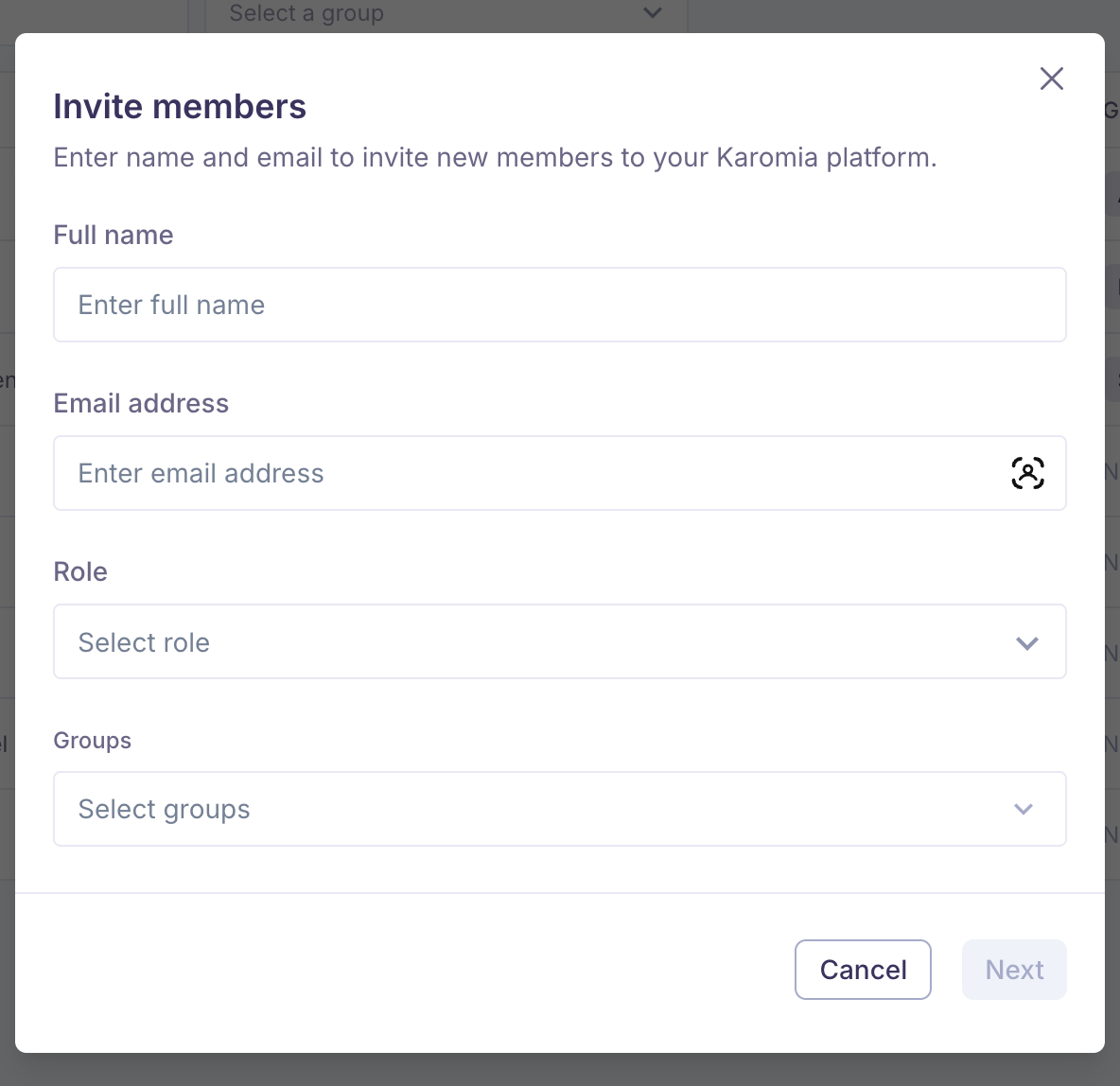
- Click Invite member
- Enter:
- Full name
- Email address
- Role
- Groups — see Step 2: Organise in groups
- Click Invite (or Add)
Add multiple members (optional)
If you're onboarding several colleagues at once, use Add a new member to add multiple invites in one go.
Roles in Karomia
| Role | Description |
|---|---|
| Admin | Full access, including inviting members and managing organisation settings. Keep this to a small number of people. |
| Member | Can do most actions, but cannot invite members. Best fit for partner members (e.g. investment managers, fund managers) who work with portfolio companies and monitor sustainability data. |
| Viewer | Read-only access. Best for colleagues who need visibility without making changes. |
Step 2: Organise in groups
Groups are how you mirror your internal structure (e.g., "Fund I", "Benelux", "Climate team", "Growth", etc.). You can create as many groups as you need — and they don't need to be mutually exclusive.
Why groups matter
Groups apply to both members and companies. A member can only:
- invite companies, and
- request/access a company's sustainability data
when that company is linked to at least one of the same groups as the member.
Assign a member to one or more groups
- In Members, find the person you want to update
- Click the Edit icon
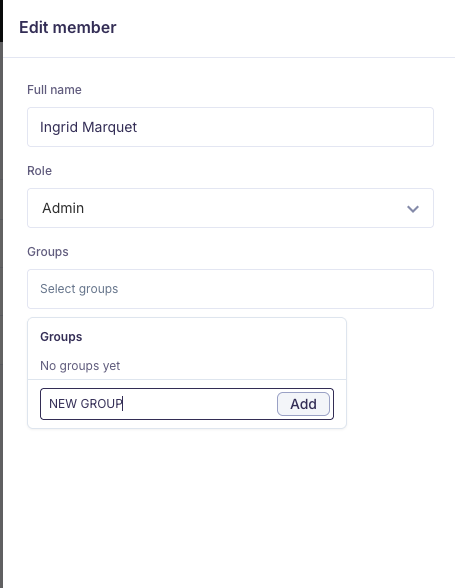
- Select one or more groups from the dropdown
- Click Save (if prompted)
Create a new group on the fly
If the group doesn't exist yet, start typing in the group field and create it directly from the dropdown.